 CamWatch
 on Mac
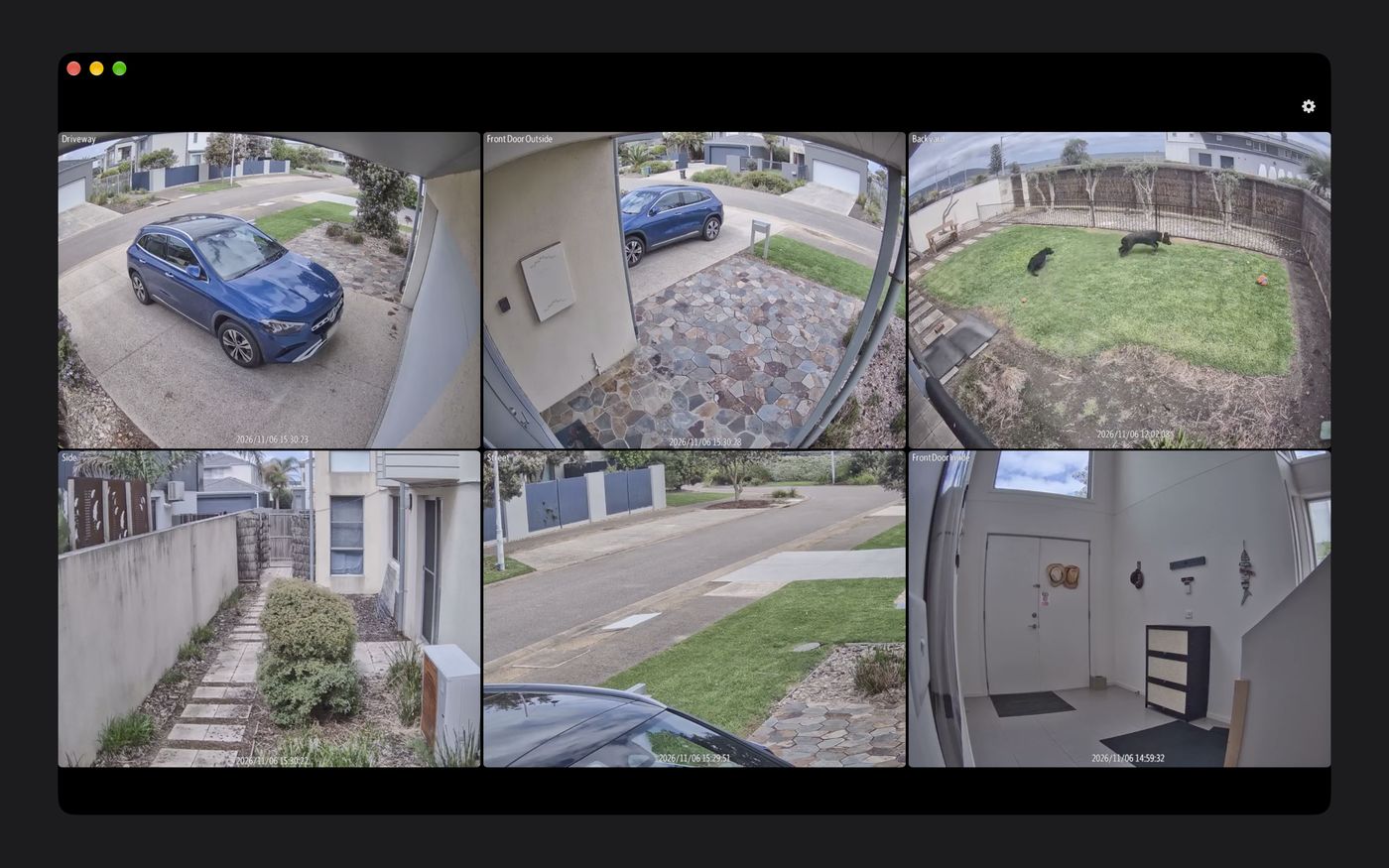
CamWatch on your Mac: a window full of cameras you can keep open while you work.
Setting up for the first time
Your Mac needs to be on the same local network as your NVR.
- Open CamWatch and click Set up cameras.
- Under Your NVR, type the NVR's address (for example
192.168.1.50), its username and its password. Leave the video port as 554 unless your NVR uses a different one. - Click Find my cameras. It can take up to a minute.
- If your Mac asks whether CamWatch can find devices on your local network, click Allow.
- Click Save and watch.
If Find my cameras comes up empty, see Support, or use Add camera manually.
Watching all your cameras
- Resize the window and the grid rearranges itself to make the pictures as big as possible. Use the green button to go full screen.
- Click a camera to open it on its own, or press 1 to 9.
- The gear button in the top right corner opens Settings, or press ⌘ ,.
One camera on its own
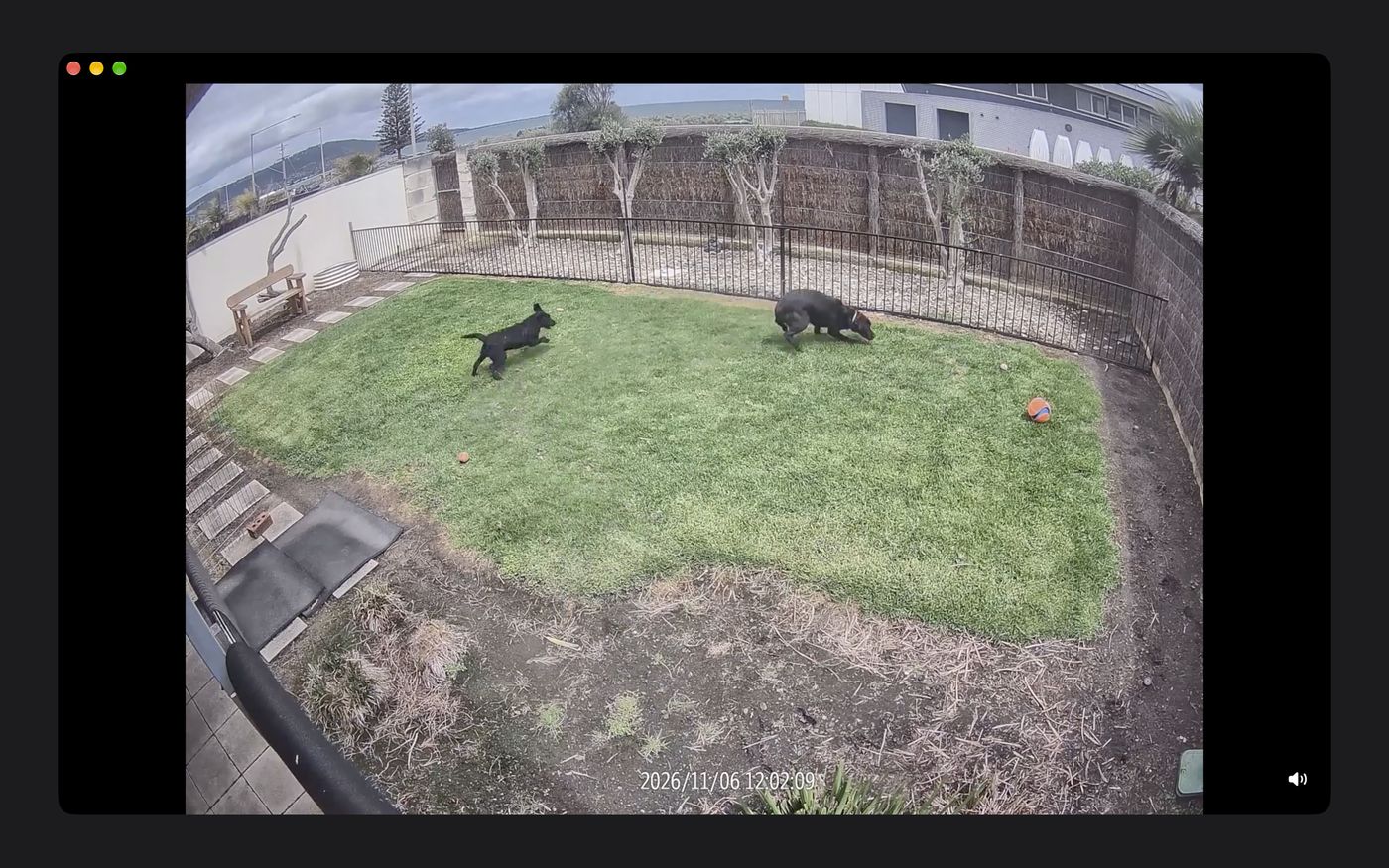
- Switch camera: press ← or →.
- Zoom: pinch on the trackpad, or double-click to zoom in quickly. Drag to look around. Double-click again to go back.
- Sound: click the speaker button in the bottom right corner, or press M.
- Back to the grid: press Esc or click the picture.
Putting cameras in your order
- In the grid, click and hold a camera.
- Drag it to where you want it. The other cameras shuffle along in order.
- Let go.
Renaming your cameras
CamWatch starts with the names your NVR uses. To give a camera a friendlier name, like "Front door":
- Open Settings (the gear in the top right corner, or ⌘ ,).
- Under Cameras, click Saved cameras to show the list.
- Click the name of the camera you want to change, and type the new name.
- Click Save and watch.
To remove a camera completely, click the bin next to its name, then Save and watch.
What's in Settings
- Your NVR
- The NVR's address, username, password and video port.
- Find my cameras
- Asks your NVR for its cameras again, for example after you add a camera.
- Saved cameras
- Your cameras, their names, and which picture size each one uses. Grid is the size used when all cameras are showing (smaller is faster); Full screen is used when you open one camera. Remote is the lighter picture used when watching remotely, on mobile data or Tailscale.
- Add camera manually
- For cameras Find my cameras can't see. You'll need the camera's RTSP link from your NVR's manual.
- Keep the screen on
- Stops the Mac going to sleep while you're watching.
- Show camera names
- Shows or hides the name labels on the grid.
- Use a lighter stream when watching remotely
- When you're watching remotely, full screen uses a lighter picture so it starts quickly. On the same Wi-Fi as your NVR you always get full quality.
Watching remotely
CamWatch is built for your local network, but you can watch remotely using Tailscale, a separate free app. See the FAQ for a quick guide.